728x90

* Docker-Desktop을 이용해 MySQL DBMS를 실행

프로젝트 진행 중 도커에서 레디스와 mysql 설치 과정에 대해서 정리할려고 한다.

일단 나는 도커를 사용해 DB를 사용할려고 한다. 왜 도커를 사용해서 디비를 사용하냐고 물어보면 

도커(Docker)를 사용하는 이유는 무엇일까? (velog.io)


도커(Docker)를 사용하는 이유는 무엇일까?

도커를 사용하면 개발 환경을 이미지화 시키고 해당 이미지를 통해 개발 및 배포 환경을 쉽게 컨테이너화 시켜 구축할 수 있다. 이런 도커를 사용하는 이유에 대해 간단히 알아보자.개발을 하다

velog.io

이 분의 글을 읽으면 좋을 것 같다. 협업 과정에서 고충을 겪을 환경설정의 문제를 해결해준다는 점! 

그럼 첫 번째는 MySQL 설치부터 할 것이다.

아래에 있는 각 단계를 따라오면 된다.


도커에서 mysql을 사용하기 위해서 할 일은 다음 4가지이다.

  • Windows를 모두 업데이트 한다.
  • Hyper-V(가상화) 또는 WSL2를 이용해 설치를 한다.
  • Windows 버전에 따라서 설치가 어려울 수도 있다. (Home버전?)
  • Docker-Desktop을 설치한다. → 설치만 ! 실행은 나중에


1. 도커 설치

  • Windows용 Docker-Desktop 다운로드

Docker Desktop: The #1 Containerization Tool for Developers | Docker


Docker Desktop: The #1 Containerization Tool for Developers | Docker

Docker Desktop is collaborative containerization software for developers. Get started and download Docker Desktop today on Mac, Windows, or Linux.

www.docker.com

도커에서 제공해주는 메뉴얼도 있다.

Install Docker Desktop on Windows | Docker Docs


Install Docker Desktop on Windows

Get started with Docker for Windows. This guide covers system requirements, where to download, and instructions on how to install and update.

docs.docker.com


2. Hyper-V(가상화) 또는 WSL2를 이용해 설치
  • 나는 윈도우에서 사용중이라 이 과정을 걸쳤다.
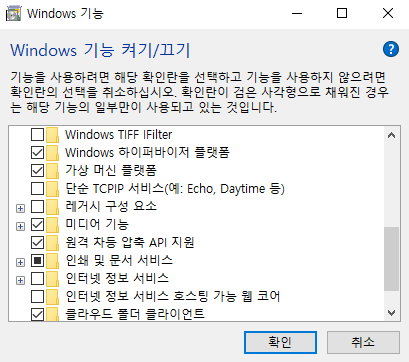
  • 윈도우 검색에서 “기능”이라고 입력하면 윈도우 기능 켜기/끄기가 보여진다.
  • 여기에서 ‘Hyper-V’ 또는 ‘Windows 하이퍼바이저 플랫폼’을 선택한다.
  • Hyper-V는 하이퍼바이저(Hypervisor)라고 한다. 하이퍼바이저는 단일 물리적 머신에서 여러 가상 머신을 실행하는 데 사용할 수 있는 소프트웨어이다.
  • 선택 → 확인 → 윈도우를 재시작

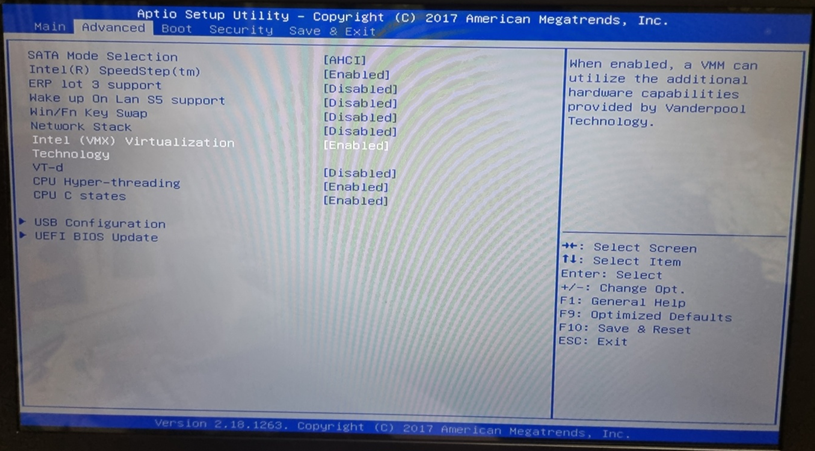
  • 하이퍼바이저가 실행되려면 BIOS에서 가상화 관련된 옵션이 사용가능해야한다.
  • PC마다 BIOS메뉴 구성은 다를 수 있다.
  • 자신의 메인보드 이름으로 구글에서 검색한다.
  • 보통 BIOS는 컴퓨터가 켜지기 전 DEL , F2 키를 빠르게 입력하면 진입 가능하다. 컴퓨터마다 진입 버튼은 다를 수 있으니 찾아봐야 함


3. WSL2 설치

  • 관련메뉴얼이다

WSL 설치 | 마이크로소프트 런 (microsoft.com)

  • Windows의 PowerShell을 관리자 권한으로 실행 후 아래 명령어 2줄을 입력해서 WSL을 활성화 한다.
# WSL2 설치
> dism.exe /online /enable-feature /featurename:Microsoft-Windows-Subsystem-Linux /all /norestart
> dism.exe /online /enable-feature /featurename:VirtualMachinePlatform /all /norestart
  • 이후 윈도우를 재시작한다.


3.1. WSL2 Linux 커널 업데이트

  • 본인 PC의 CPU 아키텍처에 맞춰 설치 파일을 다운로드 한다. 보통 x64용

x64 : https://wslstorestorage.blob.core.windows.net/wslblob/wsl_update_x64.msi

ARM64 : https://wslstorestorage.blob.core.windows.net/wslblob/wsl_update_arm64.msi

  • Windows의 PowerShell을 관리자 권한으로 실행 후 다음 명령어 실행
# WSL2 Linux 커널 업데이트
> wsl --set-default-version 2


WSL2 명령 모음

# 사용가능한 Linux 배포판 리스트 보기
> wsl --list --online

# 특정 리눅스 배포판 설치하기 (Linux를 사용해보고 싶으면 나중에 설치해보기)
> wsl --install --distribution <Distribution Name>
# ex
> wsl --install --distribution Ubuntu

# 설치된 Linux 배포판 리스트
> wsl --list --verbose

# 특정 리눅스 배포판 삭제하기
> wsl --unregister <Distribution Name>
# ex
> wsl --unregister ubuntu


3.2 도커 실행
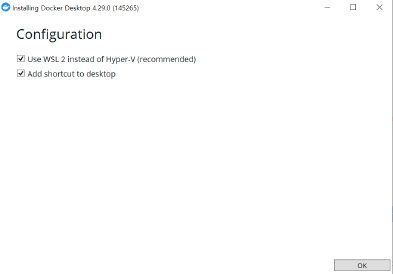
  • 이전에 다운로드한 Docker Desktop Installer.exe 파일을 실행하면 WSL2 환겨에서 실행할 것인지 묻는 checkbox가 보일 수 있다. (권장)
  • WSL은 Hyper-V 기반이 아닌데, WSL2는 Hyper-V 기반 !
  • 설치 완료 후, PC를 재시작한다.
  • 이후, docker-desktop을 실행하면 처음 보여지는 화면 동의(Accept)한다.
  • 첫 번쨰 항목을 선택하고 Finish 버튼을 클릭한다.
  • 윈도우가 재시작할 때 docker desktop이 자동으로 재시작되길 원한다면 첫 번째 체크박스를 설정한다. (Start Docker Desktop when you sign in to your computer)


3.3 WSL에 설치된 배포본을 확인

  • wsl에 docker-desktop이 설치된 것을 확인할 수 있다.
  • docker-desktop을 설치하고 실행하면 WSL2에 docker가 제공하는 리눅스가 설치된다.
  • 이 리눅스가 docker-desktop이며, docker로 실행되는 이미지들은 해당 리눅스 커널 위에서 동작한다고 보면 된다.
# WSL에 설치된 배포본 확인
> wsl --list --verbose

ex


3.4  MySQL DBMS를 실행하기 위한 docker-compose.yml 파일을 준비

  • Windows 10
    • c:/docker/mysql 폴더에 docker-compose.yml 파일을 작성
    • docker-compose.yml
version: "2"

services:
  vacation-db:
    image: mysql
    restart: always
    environment:
      MYSQL_ROOT_PASSWORD: "루트계정암호" # "root1234"
      MYSQL_DATABASE: "database이름"     # "examplesdb"
      MYSQL_USER: "아이디"               # "dms2756"
      MYSQL_PASSWORD: "암호"             # "123456789"
    command:
      - --character-set-server=utf8mb4
      - --collation-server=utf8mb4_unicode_ci
    volumes:
      - ./database/init/:/docker-entrypoint-initdb.d/
      - ./database/datadir/:/var/lib/mysql
    platform: linux/x86_64
    ports:
      - 3306:3306


3.5 docker-compose up -d

  • yml 파일이 있는 곳에서 터미널을 열고 MySQL 서버를 실행하는 명령어를 입력한다.
# MySQL 서버 실행
> docker-compose up -d
  • -d 옵션은 백그라운드로 실행하는 옵션이다.
  • 파일 내 volumes 설정은 Docker 안에서 실행되는 리눅스의 /docker-entrypoint-initdb.d/ , var/lib/mysql 폴더가 docker-compose.yml 파일이 원래 있는 경로에 database 폴더를 생성하고, 그 아래의 init, datadir 에 생성되도록 한다.
  • 원래 docker는 종료되면 docker에서 실행된 내용들은 모두 사라진다.
  • 이렇게 docker를 실행하는 컴퓨터 쪽의 디스크와 마운트 시킴으로써 사라지지 않고 계속 사용할 수 있게 할 수 있다.
  • # docker-compose.yml의 일부 volumes: - ./database/init/:/docker-entrypoint-initdb.d/ - ./database/datadir/:/var/lib/mysql


docker-compose.yml 파일이 있는 경로

  • docker-compose.yml 파일이 있는 곳에 database 폴더가 있는 것을 볼 수 있다.
  • 해당 폴더 안에 mysql의 data가 저장된다.
  • docker-compose down 명령을 실행하면 mysql 서버가 종료된다. database 폴더를 삭제하고 다시 실행하면 모든 데이터가 삭제된다. (주의)
  • docker ps 명령으로 실행되는 이미지에서 container id를 복사 후 mySQL 이미지에 접속한다.
> docker ps
# mysql 접속
> docker exec -it {복사한conainterID} /bin/bash


그럼 끝났다.


* Docker-Desktop을 이용해 Redis를 실행 

위의 과정을 통해 도커가 설치되어 있다는 가정 하에 아래를 진행한다.


1. 도커 폴더 아래 redis 폴더를 생성한다.

2. redis 폴더 아래 docker-compose.yml 작성한다.

services:
  redis:
    image: redis:latest # 최신 Redis 이미지를 사용
    container_name: redis
    command: ["redis-server", "--requirepass", "{password}", "--appendonly", "yes"]
    ports:
      - "6379:6379" # 로컬의 6379 포트를 Redis 컨테이너의 6379 포트에 매핑
    volumes:
      - ./redis-data:/data # 로컬의 'redis_data' 볼륨을 컨테이너의 /data 디렉토리에 매핑하여 데이터 영속성 유지

volumes:
  redis-data:

3. 터미널을 열어서 아래의 명령어를 입력한다.

# 레디스 이미지 가져오기
> docker pull redis

# 이미지 가져왔는지 확인
> cker images

# 레디스 실행
> docker compose up -d

> docker ps 
# 레디스 컨테이너 접속
> docker exec -it {레디스 컨테이너 아이디} redis-cli

# 레디스 암호
> AUTH {password} 

# 모든 키 검색
> KEYS * 

# 키 값 출력
> KEYS refreshToken:* 

# 해당 키에 대한 값 출력
> GET {키 값} 

# 해당키의 유효 시간 출력
> TTL {키 값} 

# 해당키 삭제
> DEL {키 값}


그럼 레디스도 잘 설치될 것이다.

728x90
728x90

개요

저번 포스트에서 2주 체험판 weather api를 사용했는데 2주가 끝나면 3일간의 날씨가 보여줄 수가 있다고 했다.

그래서 현재 코드는 7일간의 날씨가 보이도록 했지만 무료버전으로 바뀌게 되면 오류가 발생할 것 같아서 다른 방안을 찾아 다녔다.

그러다 제일 흔한 OpenWeather API의 무료버전에서 5일간의 날씨를 보여줄 수 있다고 한다.!!! 비록 일주일은 아니지만 5일만의 날씨가 보여지는 것만으로도 만족한다..ㅎㅎㅎ


프로젝트 구성

Current weather and forecast - OpenWeatherMap


Current weather and forecast - OpenWeatherMap

OpenWeather Weather forecasts, nowcasts and history in a fast and elegant way

openweathermap.org

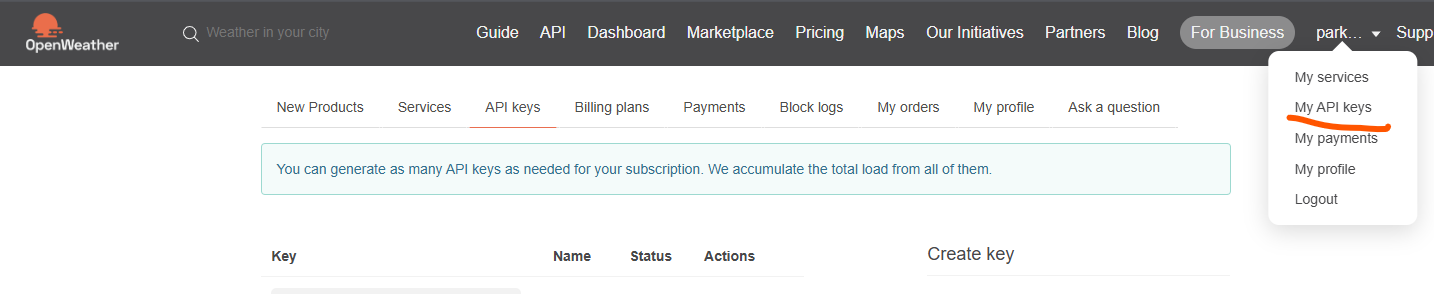
여기서 회원가입 후 My API Keys를 들어가면 기본적인 API 키가 있을 것이다. 그게 끝이다...ㅎㅎ 
그리고 가입한 이메일을 가서 인증을 하고 1시간정도 기다리면 이제 api 키가 활성화가 되어서 사용이 가능해진다.


  • 이때 발급하면 나오는 API KEY를 application.yml 파일에 저장한다.
  • 알려져서는 안되는 키이다.
weather:
  api:
    key: {API key}


  • 그 후에 스프링에서 날씨 api를 불러쓰기 위해서 RestTemplate를 빈으로 등록한다.
@Configuration
public class DemoApplication {

    @Bean
    public RestTemplate restTemplate() {
        return new RestTemplate();
    }
}
  • RestTemplate 이란?
    • HTTP 요청을 보내고 응답을 받기 위해 사용하는 클라이언트이다.
    • 외부 RESTful 웹 서비스와 통신할 때 사용된다.
    • 다른 서버의 API를 호출하여 데이터를 가져오거나, 서버로 데이터를 전송할 때 사용된다.
  • 왜 @Bean으로 등록?
    • Spring 컨텍스트 내에서 공유되며, 다른 컴포넌트에서 @Autowired를 통해 주입받아 사용할 수 있다.


날씨 API call 살펴보기

  • 그 다음으로 사이트에 들어가서  API -> {원하는 date} -> API doc 를 들어가서 url을 어떤식으로 작성해야 하는지 확인한다.
  • 하지만 무료버전/ 유료버전에 따라 다르기 때문에 잘 보고 해야한다.
  • 나는 현재날씨와 5일간의 날씨 2가지를 다 가져와서 보여지게 할 것이다.
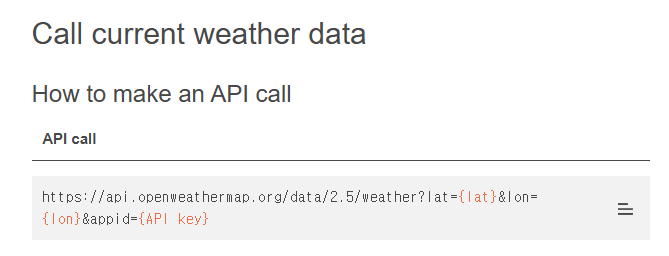
  • 만약 현재 날씨만 가져올 것이면 Current Weather Data에 들어가서 보면 어떤 식으로 불러올지 나와있다.
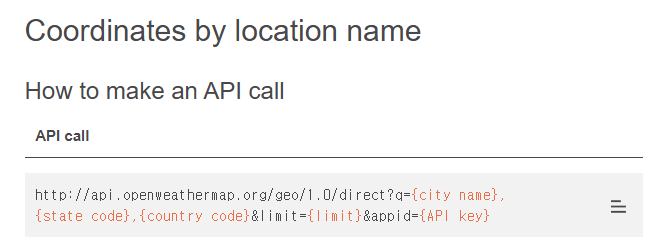
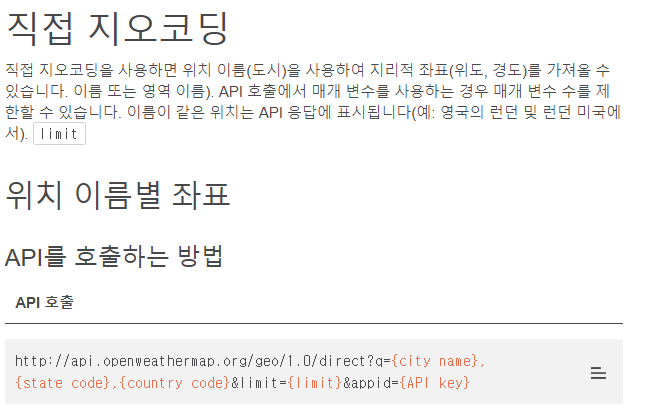
  • 나는 현재 날씨는 지오코딩 api를 사용했다.


지오코딩은 번역기 돌려서..


이렇게 얘기한다 ㅎㅅㅎ지오코딩을 사용해서 현재 위치를 보여준 이유는 공식 문서에서 지오코딩 어쩌고 더 간단하다고 써봤는데... 


만약 지오코딩을 써서 현재의 날씨를 받아오면 아래와 같은 json으로 출력된다. 

[
   {
      "name":"London",
      "local_names":{
      },
      "lat":51.5073219,
      "lon":-0.1276474,
      "country":"GB",
      "state":"England"
   },


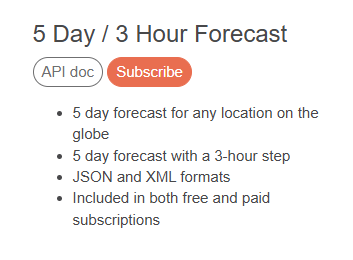
  • 그리고 5일간의 날씨 데이터와 3시간 간격으로 보여지도록 할 것이기에 5 Day / 3 Hour Forecast -> API doc 에 들어간다. 

  • 공식 문서에서 알려주는 듯이 api call 형태로 위도와 경도를 받아와서 보여주는 식으로 진행할 것이다. 
  • 그 다음으로 yml 저장한 키를 토대로 api 를 불러오기 위한 컨트롤러를 작성한다.
@RestController
@RequiredArgsConstructor
public class WeatherApiController {

    @Value("${weather.api.key}")
    private String apiKey;

    private final RestTemplate restTemplate;
    private final ObjectMapper objectMapper;

    @GetMapping("/api/weather")
    public ResponseEntity<String> getWeather(@RequestParam String location) {
        String geocodeUrl = String.format("http://api.openweathermap.org/geo/1.0/direct?q=%s&limit=1&appid=%s",
                location, apiKey);

        try {
            ResponseEntity<String> geocodeResponse = restTemplate.getForEntity(geocodeUrl, String.class);
            if (geocodeResponse.getStatusCode() != HttpStatus.OK || geocodeResponse.getBody() == null) {
                return ResponseEntity.status(HttpStatus.BAD_REQUEST).body("위치 정보를 찾을 수 없습니다.");
            }

            JsonNode geocodeJsonArray = objectMapper.readTree(geocodeResponse.getBody());
            if (geocodeJsonArray.isEmpty()) {
                return ResponseEntity.status(HttpStatus.BAD_REQUEST).body("위치 정보를 찾을 수 없습니다.");
            }

            JsonNode locationJson = geocodeJsonArray.get(0);
            double lat = locationJson.get("lat").asDouble();
            double lon = locationJson.get("lon").asDouble();

            // 5일 날씨 예보 URL
            String forecastUrl = String.format("https://api.openweathermap.org/data/2.5/forecast?lat=%s&lon=%s&appid=%s&units=metric",
                    lat, lon, apiKey);

            String forecastResponse = restTemplate.getForObject(forecastUrl, String.class);
            return ResponseEntity.ok(forecastResponse);

        } catch (Exception e) {
            return ResponseEntity.status(HttpStatus.INTERNAL_SERVER_ERROR).body("날씨 정보를 가져오는 데 실패했습니다.");
        }
    }
}
  • 위 코드는 지오코딩으로 현재 날씨에서 json을 받아오고 응답한 뒤, 그 값에서 아래의 코드를 통해 경도와 위도를 받아온다.
            JsonNode locationJson = geocodeJsonArray.get(0);
            double lat = locationJson.get("lat").asDouble();
            double lon = locationJson.get("lon").asDouble();
  • 위에서 봤듯이 json 출력 배열의 첫 번째 요소 중 경도와 위도를 가져오는 부분이다.
  • 특정 위치의 날씨 정보를 가져오는 데 필요하다.


HTML, JS 코드

<!DOCTYPE html>
<html lang="ko">
<head>
    <meta charset="UTF-8">
    <meta name="viewport" content="width=device-width, initial-scale=1.0">
    <title>OMG Travel</title>
    <script src='https://cdn.jsdelivr.net/npm/fullcalendar@6.1.15/index.global.min.js'></script>
    <link rel="stylesheet" href="/css/header.css">
</head>
<body>
<div th:replace="fragments/header :: headerFragment"></div>
<div class="wrapper">
    <div class="container">
        <div class="left-content">
            <div class="weather-section">
                <div class="search-container">
                    <input type="text" id="location-input" class="search-input" placeholder="지역 입력">
                    <button id="search-button" class="search-button">검색</button>
                </div>
                <div>
                    <h3>현재 날씨</h3>
                    <div id="current-weather"></div>
                    <div id="current-date" style="display: none;"></div>
                    <h3>이번 주 날씨</h3>
                    <div class="weather" id="weather-container"></div>
                </div>
            </div>
        </div>
    </div>
</div>

<script>
    document.addEventListener('DOMContentLoaded', function() {
<!-- 날씨 API 불러오기 -->
        const weatherContainer = document.getElementById('weather-container');
        const currentWeather = document.getElementById('current-weather');
        const currentDateEl = document.getElementById('current-date');

        function fetchWeather(location) {
            fetch(`/api/weather?location=${encodeURIComponent(location)}`)
                .then(response => {
                    if (!response.ok) {
                        throw new Error(`HTTP 접속 오류 상태: ${response.status}`);
                    }
                    return response.json();
                })
                .then(data => {
                    // 날짜별로 날씨 정보를 집계
                    const weatherMap = {};
                    data.list.forEach(item => {
                        const date = new Date(item.dt * 1000);
                        const options = {weekday: 'short', month: 'short', day: 'numeric'};
                        const formattedDate = date.toLocaleDateString('ko-KR', options);

                        if (!weatherMap[formattedDate]) {
                            weatherMap[formattedDate] = {
                                tempSum: 0,
                                count: 0,
                                weatherDescription: item.weather[0].description,
                                iconCode: item.weather[0].icon
                            };
                        }
                        weatherMap[formattedDate].tempSum += item.main.temp;
                        weatherMap[formattedDate].count += 1;
                    });

                    // 평균 온도 계산 및 출력
                    const weatherItems = Object.keys(weatherMap).map(date => {
                        const weatherInfo = weatherMap[date];
                        const averageTemp = (weatherInfo.tempSum / weatherInfo.count).toFixed(1);
                        const iconUrl = `http://openweathermap.org/img/wn/${weatherInfo.iconCode}@2x.png`;

                        return `
                    <div class="weather-item">
                        <div class="day">${date}</div>
                        <div class="temp">${averageTemp}°C</div>
                        <img src="${iconUrl}" alt="날씨 아이콘" class="weather-icon"/>
                        <div>${weatherInfo.weatherDescription}</div>
                    </div>
                `;
                    }).join('');

                    weatherContainer.innerHTML = weatherItems;

                    const today = new Date();
                    const options = {year: 'numeric', month: 'long', day: 'numeric'};
                    const formattedDate = today.toLocaleDateString('ko-KR', options);

                    // 현재 날씨를 보여주는 부분
                    const currentItem = data.list[0];
                    currentWeather.innerHTML = `
                <div class="current-temp">${currentItem.main.temp}°C</div>
                <div class="current-description">${currentItem.weather[0].description}</div>
                <img src="http://openweathermap.org/img/wn/${currentItem.weather[0].icon}@2x.png" alt="날씨 아이콘" class="weather-icon"/>
            `;
                    currentDateEl.innerHTML = `<div>${formattedDate}</div>`;
                })
                .catch(error => console.error('날씨 정보를 가져오지 못했습니다:', error));
        }

        fetchWeather('Seoul'); // 기본값 서울

        document.getElementById('search-button').addEventListener('click', function () {
            const locationInput = document.getElementById('location-input').value;
            if (locationInput) {
                fetchWeather(locationInput);
            } else {
                alert('지역 이름을 입력하세요.');
            }
        });

        document.getElementById('location-input').addEventListener('keypress', function (e) {
            if (e.key === 'Enter') {
                document.getElementById('search-button').click();
            }
        });
    });
</script>
</body>
</html>


위와 같이 코드를 작성하면 화면단에 날씨가 보인다!!

참고로 왜 5일간의 데이터가 보인다고 했는데 실제로 보이는건 오늘 날짜를 포함한 6일의 날씨가 보인다. 이건 

open weather API에서 제공하는 자체가 5일간의 데이터 + 3시간 후 날씨 여서 현재 날씨의 3시간 후 날씨도 같이 보여지는 것이다. 보여지는게 싫다면 자바 코드에서 수정하면 되지만.. 굳이!? 

화면단 구성 완료..... 휴 힘들었다 ㅜ.ㅜ


728x90
728x90

Spring Security 환경설정

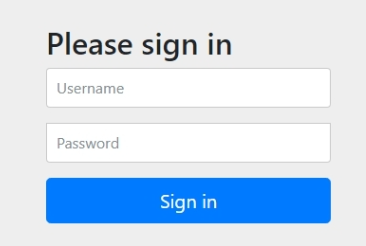
시큐리티 적용시 기본적으로 로그인화면이 나온다. 기본 Username/Password = user/시스템 로그에 출력됨


Spring Security 의존성 추가

implementation 'org.springframework.boot:spring-boot-starter-security'
implementation 'org.thymeleaf.extras:thymeleaf-extras-springsecurity6'
testImplementation 'org.springframework.security:spring-security-test'

 • 스프링 시큐리티를 사용하기 위한 스타터

• 타임리프에서 스프링 시큐리티를 사용하기 위한 의존성

• 스프링 시큐리티를 테스트 하기 위한 의존성


spring:
  security:
    user:
      name: user
      password: 1111


SecurityConfig

Spring Security의 환경설정을 구성하기 위한 클래스다!


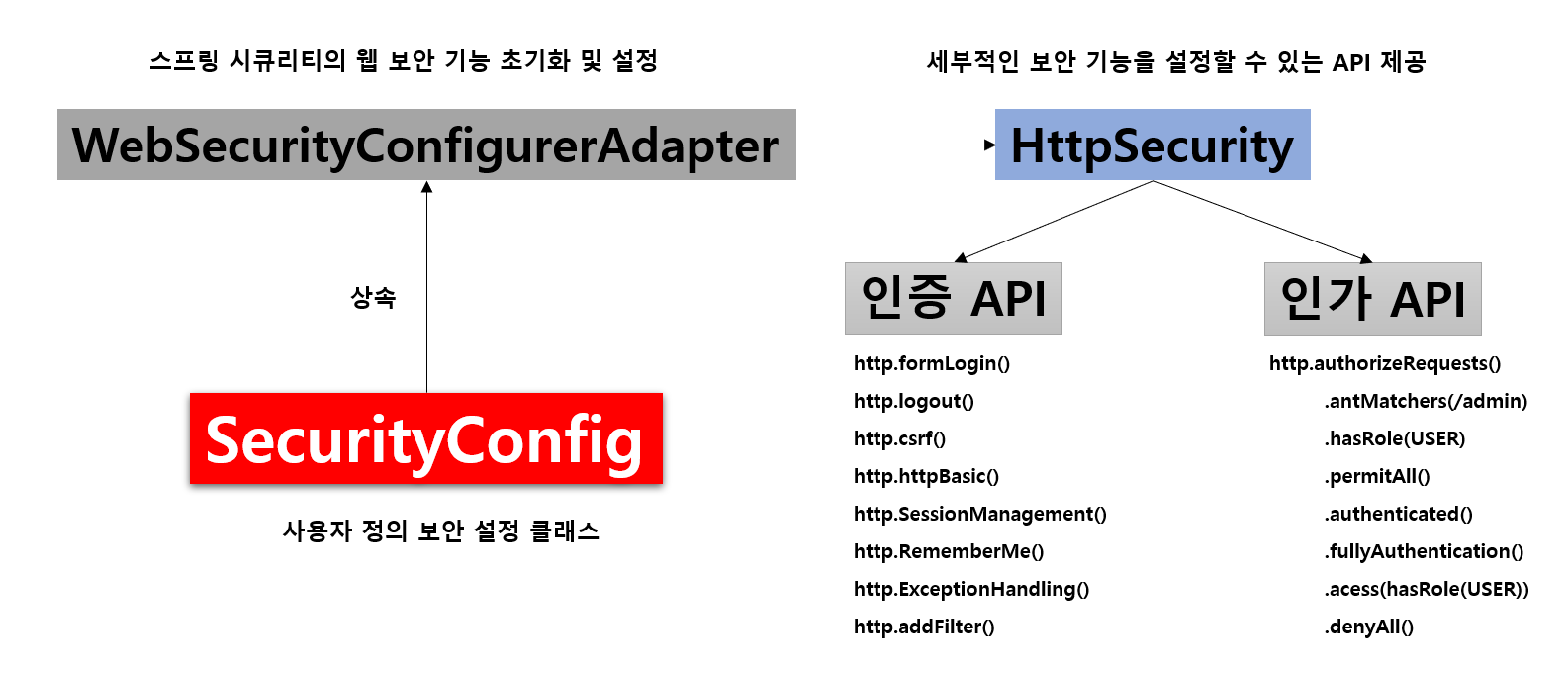
HttpSecurity로 대부분 구현한다고 생각하면 된다. 참고로 현재는 WebSecurityConfigurerAdapter는 사용을 안한다.

  • 먼저 config 패키지에 SecurityConfig라는 시큐리티 설정 파일을 만들어 주고 필요한 @bean들을 추가해 사용할 수 있다. --> 사진을 찾다보니 현재 WebSecurityConfigurerAdapter는 시큐리티3부터 사용을 안하지만 HttpSecurity에 대한 설명이 나와있어서 사용했다. 현재 WebSecurityConfigurerAdapter 를 상속하지 않는다!
  • 이제는 @Bean 으로 SpringSecurityFilterChain 을 구현한다.
  • config 클래스에 @EnableWebSecurity 어노테이션을 달아서 시큐리티 설정을 해준다.
@Configuration
@EnableWebSecurity
public class SecurityConfig{

	// 패스워드 암호화 관련 메소드
  @Bean 
  public PasswordEncoder passwordEncoder(){
      return new BCryptPasswordEncoder();
  }

	// 특정 HTTP 요청에 대한 웹 기반 보안 구성
	// 시큐리티 대부분의 설정을 담당하는 메소드
	@Bean 
	public SecurityFilterChain filterChain(HttpSecurity http) throws Exception {
			http	
				.csrf(AbstractHttpConfigurer::disable)
				.httpBasic(AbstractHttpConfigurer::disable)
				.authorizeHttpRequests((authorize) -> authorize
						.requestMatchers("/signup", "/", "/login").permitAll()
						.anyRequest().authenticated()
				)
				// Form 로그인을 활용하는경우 (JWT에는 필요없음)
				.formLogin(form -> form
	            		.loginPage("/loginform") 
	            		.loginProcessingUrl("/login") 
              			.defaultSuccessUrl("/")
              			.permitAll()
        			)
				.logout((logout) -> logout
				.logoutUrl("/logout")
             			.logoutSuccessUrl("/")
				.invalidateHttpSession(true)
				)
				.sessionManagement(sessionManagement -> sessionManagement
             			.maximumSessions(1) 
             			.maxSessionsPreventsLogin(true)
             			.sessionCreationPolicy(SessionCreationPolicy.STATELESS)
        			)
			);
		return http.build();
	}

	// 이외에도 등록해서 사용하면 된다..
}


코드설명

  • filterChain() : 특정 Http 요청에 대해 웹 기반 보안 구성. 인증/인가 및 로그아웃을 설정한다.
    • .csrf(Cross site Request forgery) : 공격자가 인증된 브라우저에 저장된 쿠키의 세션 정보를 활용하여 웹 서버에 사용자가 의도하지 않은 요청을 전달하는 것. 즉, 정상적인 사용자가 의도치 않은 위조요청을 보내는 것을 의미한다.
      • REST API를 이용한 개발을 진행 할 예정일 때, Rest Api 환경에서는 Session 기반 인증과 다르기 때문에 서버에 인증 정보를 보관하지 않고, 권한 요청시 필요한 인증정보(OAuth2, Jwt토큰 등)요청을 포함하기 때문에 굳이 불필요한 csrf 보안을 활성화할 필요가 없다.
      • 따라서 csrf는 disable 처리
    • .HttpBasic()
      • HttpBasic() : Http basic Auth 기반으로 로그인 인증창이 뜬다.
    • .authorizeHttpRequests() : 인증, 인가가 필요한 URL 지정
      • anyRequest() : requestMatchers에서 지정된 URL 외의 요청에 대한 설정
      • authenticated() : 해당 URL에 진입하기 위해서는 인증이 필요함
      • requestMatchers("Url").permitAll() : requestMatchers에서 지정된 url은 인증, 인가 없이도 접근 허용
      • Url에 /**/ 와 같이 ** 사용 : ** 위치에 어떤 값이 들어와도 적용 (와일드 카드)
      • hasAuthority() : 해당 URL에 진입하기 위해서 Authorization(인가, 예를 들면 ADMIN만 진입 가능)이 필요함
        • .hasAuthority(UserRole.ADMIN.name()) 와 같이 사용 가능
    • formLogin() : Form Login 방식 적용
      • loginPage() : 로그인 페이지 URL
      • defaultSuccessURL() : 로그인 성공시 이동할 URL
      • failureURL() : 로그인 실패시 이동할 URL
    • logout() : 로그아웃에 대한 정보
      • invalidateHttpSession() : 로그아웃 이후 전체 세션 삭제 여부
    • sessionManagement() : 세션 생성 및 사용여부에 대한 정책 설정
      • SessionCreationPolicy() : 정책을 설정
      • SessionCreationPolicy.Stateless : 4가지 정책 중 하나로, 스프링 시큐리티가 생성하지 않고 존재해도 사용하지 않는다. (JWT와 같이 세션을 사용하지 않는 경우에 사용)

BCryptPasswordEncoder

BCrype 인코딩을 통하여 비밀번호에 대한 암호화를 수행한다.

password를 암호화해줌

  • Spring Security에서 비밀번호를 안전하게 저장할 수 있도록 비밀번호의 단방향 암호화를 지원한다.
    -> PasswordEncoder 인터페이스와 구현체들

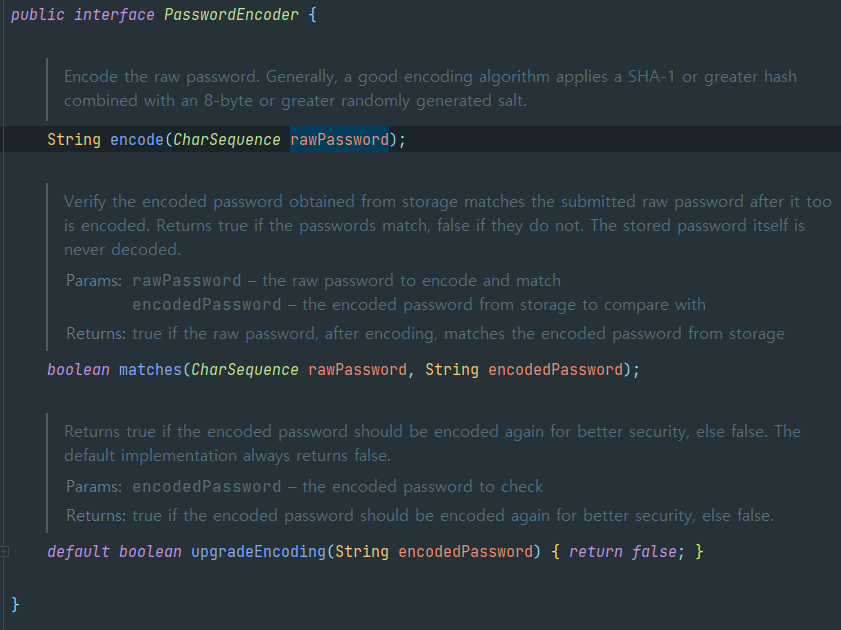
  • encode() : 비밀번호를 암호화(단방향)
  • matches() : 암호화된 비밀번호와 암호화되지 않은 비밀번호가 일치하는지 비교
  • upgradeEncoding() : 인코딩된 암호화를 다시 한번 인코딩 할 때 사용 (true일 경우 다시 인코딩, default=false)


PasswordEncoder가 제공하는 구현 클래스

  • StandardPasswordEncoder : SHA-256을 이용해 암호를 해시한다. (강도가 약한 해싱 알고리즘이기 때문에 지금은 많이 사용되지 않는다.)
  • BCryptPasswordEncoder : bcrypt 강력 해싱 함수로 암호를 인코딩
  • NoOpPasswordEncoder : 암호를 인코딩하지 않고 일반 텍스트로 유지(테스트 용도로만 사용.)
  • SCryptPasswordEncoder : scrypt 해싱 함수로 암호를 인코딩한다.
@Bean // 패스워드 암호화 관련 메소드
public PasswordEncoder passwordEncoder(){
    return new BCryptPasswordEncoder();
}
  • 현재 사용되는 알고리즘에서 취약성이 발견되어 다른 인코딩 알고리즘으로 변경하고자 할 때 대응하기 좋은 방법은 DelegatingPasswordEncoder을 사용하는 것
@Bean // DelegatingPasswordEncoder: 여러 인코딩 알고리즘을 사용할 수 있게 해주는 기능
	public static PasswordEncoder passwordEncoder() {
		return PasswordEncoderFactories.createDelegatingPasswordEncoder();
	}


기타 참고용


Configure 작성 문법 바뀐 부분

스프링 3.0 이상의 버전부터는 스프링 시큐리티 버전도 바뀌어서 기존의 Configuration과는 다르게 작성해야 한다. WebSecurity, HttpSecurity 모두 큰 변화를 맞이 했는데, 그중 하나가 lambdas 형식의 작성법이다.

  • 람다식을 파라미터로 전달하여 아래와 같이 사용한다.
.formLogin(formLogin -> formLogin
						.loginPage("/login")
						.defaultSuccessUrl("/home"))


HttpSecurity

스프링시큐리티의 각종 설정은 HttpSecurity로 대부분 하게 된다!

Spring Boot 3.1(Spring 6.1) Security Config: 'csrf()' is deprecated and marked for removal

  • 스프링 부트 버전이 올라가면서 작성방식에 차이가 생김

Spring boot 3.0.6, Spring security 6, jwt적용 및 인증, 예외 처리

  • 버전이 올라가면서 동작방식이 달라짐


HttpSecurity - 리소스(URL) 접근 권한 설정

특정 리소스의 접근 허용 또는 특정 권한을 가진 사용자만 접근을 가능하게 할 수 있다.

http
		
       .authorizeHttpRequests(authorizeRequest -> authorizeRequest
		
        // 해당 경로는 모든 권한을 허용한다.
    	.requestMatchers(HttpMethod.GET, "/login**", "/web-resources/**", "/actuator/**").permitAll()

	// 해당 경로는 어드민 권한이 있어야한다.
    	.requestMatchers(HttpMethod.GET, "/admin/**").hasAnyRole("ADMIN")

	// 해당 경로는 유저 권한이 있어야 한다.
    	.requestMatchers(HttpMethod.GET, "/order/**").hasAnyRole("USER")

	// 나머지는 모두 권한이 필요하다.
    	.anyRequest().authenticated()
  • requestMatchers
    • 특정 리소스에 대해서 권한을 설정한다.
  • permitAll
    • 리소스의 접근을 인증절차 없이 허용한다.
  • authenticated
    • 리소스의 접근을 인증절차를 통해 허용한다.
  • hasAnyRole
    • 해당 권한을 가진 사용자만 접근을 허용한다.
  • anyRequest
    • 모든 리소스를 의미하며, anyMatcher로 설정하지 않은 리소스를 말한다. 


HttpSecurity - 로그인처리 설정

로그인 FORM 페이지를 이용하여 로그인하는 방식을 사용하려고 할때 여러가지 설정을 할 수 있다.

// Form 로그인을 활용하는경우 (JWT에는 필요없음)
// .formLogin(Customizer.withDefaults()); // Security가 제공하는 로그인 방식 사용
.formLogin(formLogin -> formLogin
        .loginPage("/login")
        .loginProcessingUrl("/loginProc")
        .usernameParameter("userId")
        .passwordParameter("userPw")
        .permitAll())


JwtAuthenticationFilter 사용

HttpSecurity - 커스텀 필드 등록 ⭐

커스텀 필터를 생성해서 등록할 수 있다!

.addFilterBefore(jwtAuthenticationFilter, 
	UsernamePasswordAuthenticationFilter.class)
    // UsernamePasswordAuthenticationFilter가 기존 시큐리티 세션 방식의 로그인 필터이기 때문에
    // UsernamePasswordAuthenticationFilter 앞에 커스텀한 필터 체인을 넣어준다.
  • addFilterBefore
    • 지정된 필터 앞에 커스텀 필터를 추가한다.
  • addFilterAfter
    • 지정된 필터 뒤에 커스텀 필터를 추가한다.
  • addFilterAt
    • 지정된 필터의 순서에 커스텀 필터가 추가된다.


JwtAuthenticationFilter

  • JwtAuthenticationFilter.java
    • jwt 방식으로 로그인을 진행할 것이기 때문에 커스텀한 필터이다.
@Order(0)
@RequiredArgsConstructor
@Component
@Slf4j
public class JwtAuthenticationFilter extends OncePerRequestFilter {

    private final TokenProvider tokenProvider;

    @Override
    protected void doFilterInternal(HttpServletRequest request, HttpServletResponse response, FilterChain filterChain) throws ServletException, IOException {

        String token = parseBearerToken(request);

        // 토큰값이 유요하다면 검증을 시작한다.
        if (token != null && tokenProvider.validToken(token)) {
            // 토큰 검증
            Authentication authentication = tokenProvider.getAuthentication(token);

            // SecurityContextHolder => 인증정보를 담는다.
            SecurityContextHolder.getContext().setAuthentication(authentication);
            log.info("Security Context에 {} 인증 정보를 저장했다", authentication.getPrincipal());
        } else {
            log.info("유효한 JWT 토큰이 없습니다, uri: {}", request.getRequestURI());
        }

        filterChain.doFilter(request, response);
    }

    /**
     * Authorization Bearer 제거(공백포함 7글자)
     * @param request 요청 request
     * @return token (없는경우 null)
     */
    private String parseBearerToken(HttpServletRequest request) {
        return Optional.ofNullable(request.getHeader(HttpHeaders.AUTHORIZATION))
                .filter(token -> token.length() >= 7 && token.substring(0, 7).equalsIgnoreCase("Bearer "))
                .map(token -> token.substring(7))
                .orElse(null);
    }
}


JwtAuthenticationFilter에 대해서는 이전 블로그에 자세하게 적어놓았다.
Spring Security + JWT (RefreshToken, AccessToken)를 사용한 로그인, 로그아웃 구현 - 4편 :: 미정 (tistory.com)


Spring Security + JWT (RefreshToken, AccessToken)를 사용한 로그인, 로그아웃 구현 - 4편

개요* 1~3편 정리1편에서 기본적인 세팅은 끝이 났다.2편에서는 SecurityConfig에 대해서 보안 설정을 했다.3편에서는 RefreshToken과 BlackListToken에 대해서 엔티티와 레포지토리, 서비스를 작성했다. 4편

eesko.tistory.com


jwt에 대해서 알고싶다면

[멋쟁이사자처럼 백엔드 TIL] Spring Security : JWT(JSON Web Token) :: 미정 (tistory.com)

728x90

+ Recent posts